Router and Extender Setup via http://edimax.setup
If you are trying to setup your Edimax Router or Edimax Wifi Extender then this setup manual will help you a lot. Now, first thing to note down is that you need to plug your device and then wait for its power LED to turn stable. Once you have that then we can go ahead and start the setup process. If your internet connection requires a specific MAC address, you can easily replicate it on your Edimax router. Learn the exact steps in our guide How to clone a MAC address on an Edimax router.
Moreover, the Installation process for Edimax router is bit different then Edimax extender. But the setup link that is http://edimax.setup remains same for both. Whereas their default IP Addresses are also different. For router it is 192.168.2.1 and for the extender it is 192.168.2.2. If your internet comes from a cable modem, you’ll need to know how the connection type works. Set up an Edimax router with a cable modem using DHCP Our guide explains the simple DHCP setup for your Edimax router.
So, as mentioned earlier this setup guide works for both edimax router and extender. So lets get started.
Edimax.setup: Steps to Edimax Router Setup
The installation process is very simple and straightforward. Follow the steps mentioned below.
-
- Plugin the adapter pin that came with the router into a 12V DC power point at the back of your router. Thereafter, connect the other end to an electrical socket.
- Wait until the power LED on the router turns stable.
- Now, you have to use a Wi-Fi device such as a tablet, computer, or smartphone. On any of these devices go to the Wi-Fi network and there look for ‘ edimax.setup 5G ’ or ‘ edimax.setup ’. Tap on this network to connect to it.
-
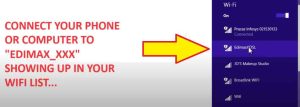
- If you can’t find this network in your Wi-fi list then simply reset your device.
Note: The Android 4 or iOS 4 and above versions are needed to set up on a tablet or smartphone.
-
- So once you are connected to “Edimax.setup”, open the web browser. On the URL you need to type http://edimax.setup / and hit enter.
- If this URL does not bring the edimax router login page then type 192.168.2.1 and hit enter.
- In user name and password field type “admin” and “1234”, respectively. If the browser doesn’t take this information then have a look at the back of your router, there you will find the default username/[password for your device.
Imp: In case you are unable to access http://edimax.setup/, make sure that the computer is set up for using a dynamic IP address.
-
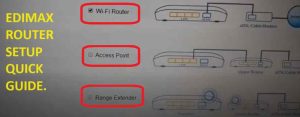
Select if you would like to use RG21S/RA21s in its default Wi-Fi router mode or as the access point.
a. Wi-Fi Router Mode: The device connects to the modem and offers 2.4GHz or 5GHz internet access for the network devices.
b. Access Point Mode: The device connects to an existing router through the Ethernet cable and offers 2.4GHz or 5GHz Internet access for the network devices.
- Now, follow the instructions given on-screen for completing the setup.
- Choose if you want to use the IQ Setup Wizard for detecting the internet connection type or simply enter the settings manually.
Note: Manual configuration is recommended for advanced users.
-
- Now, connect the blue color internet port of the device to the modem’s LAN port with the help of an Ethernet cable. Thereafter, you have to click on ‘Next’.
- Wait for some time as the device tests the connection.
- Type the Network name(SSID) and password of the 5GHz and 2.4GHz wireless networks. Thereafter, you have to click on ‘Continue’.
- You will notice a summary of the configuration. Check if the details you have entered are correct and then click on ‘Next’ to proceed.
Note: In case you want to back up the settings of the device, just click on ‘Backup this configuration’ for opening the new window and saving the current configuration to a .txt file.
- Wait for the device to appear in settings.
- A final congratulation screen indicates that the setup is complete. Now, you can connect the new SSID(s) of the device that is shown in your Wi-Fi list and then simply close the browser window.
- Now the device is working and is ready to use.
Now, let’s proceed to the Edimax extender setup. Like the router, this too takes a few minutes.
Steps for the Edimaxext.Setup
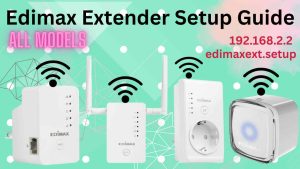
By setting up the Edimax extender, you can expect extended coverage in your house. With this, there will be no more dead zones. For the Edimaxext setup , you just have to follow the steps that I am listing below.
But before that, you should know that even though the extender can work with all general routers, it offers the best coverage when you use it with Edimax Router.
Remember, you will have to use a separate wireless name and connection password just as you set up for the router. Now, let’s move on to the process-
-
- First, you have to power up the device. You will have to do this by plugging it into the power socket close to the Wi-Fi router. Thereafter, you will have to wait for the Power LED to turn stable.
- Now, there are two ways to set it up, lets check them both. You can try either, whichever you find easier.
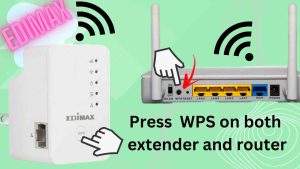
a. Setting the Device as the Extender through WPS
-
- Now, turn on the router’s WPS function by pressing and holding the WPS button on it for 2 seconds.
- Hold the WPS button for 2 seconds or until you see the Power LED flashing slowly on the extender too.
- Check the device’s Wi-Fi LED to ensure that there is a signal. In case the LED is off, just move the extender closer to the router and try again.
- Subsequently, a solid Wi-fi light on the extender confirms a successful setup.
b. Setting the Device as the Extender Using IQ Setup (Browser)
-
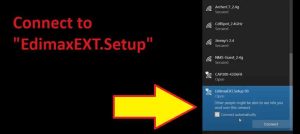
- Connect any Wi-Fi capable device like phone or laptop to the Edimax Extender Network Name . It will show up as “EdimaxEXT.Setup_XX” in your Wi-Fi list. Connect to it and insert the password when asked for it. Check the Access Key Card for the Wi-Fi SSID or network name and the password. By default the password is “1234”.
-
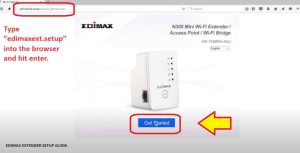
- Open your preferred web browser and enter http://edimaxext.setup and hit enter. You also have the option to scan the QR-code present on the right side and click on the option ‘Get Started’.
- Just in case the above login URL is not working for you. Then you can try the default IP Address of the Edimax Wi-fi extender that is 192.168.2.2. If it asks for username and password then type “admin” and “1234” respectively.
-
- Choose the mode in which you want to setup the Edimax Wi-Fi Extender. All the three modes have different Wi-Fi speeds. Access point mode provides fastest speed and then comes the bridge mode and lastly the Wi-Fi extender mode.
- Whichever mode you choose accordingly, you will have to plug/unplug the ethernet cable.
- Next, follow the instructions given on the screen for completing the setup process.
- Check the device’s Wi-Fi LED to ensure if there is a signal. In case the LED is off, move closer to the extender and try out once again. Or else you can reset the extender too and then try the setup.
- It is now time to relocate the extender.
Where Should I Place Edimax Extender After Setup?
Make sure that you relocate the extender to get the desired coverage. Check on the Wi-Fi LED behavior to understand if the location is adequate. To get the optimum coverage, you should relocate the extender to a place where the signal strength shows ‘Good Performance’.
This is where the signal coverage of the Wi-Fi router and the extender are less overlapped. So, this is how you can easily setup your Edimax extender and Edimax router in just 2 minutes.
FAQ
What If I Don’t Remember My Login Password for Web Management in the Edimax Router?
In case you don’t remember the login password to the router, I would suggest you reset the router back to its factory default settings. For this, you have to hold the WPS or the Reset button for 12 seconds until you see the internet LED light flashing.
Make sure that you wait for at least a few minutes for it to restart. As soon as the device restarts, all the previous settings are going to be reset to factory default settings.
The default username is admin and the password is 1234. You can see the default settings being displayed on the product label too, at the router’s bottom.
What will Happen When I Connect the Wired Ethernet Client in the Range Extender Mode When the Router is Setup as the Dual Band Extender?
If you connect a network device in the range extender mode to the router through the Ethernet cable, the network will connect to the 5GHz network by default. In case no 5GHz network is available, it is going to connect to the 2.4GHz network.
How can I Upgrade the Firmware in the Router?
If you want to upgrade the Edimax router’s firmware, you will have to follow the steps given below.
Configuration Steps
- First, power on the router and then connect the LAN port of the router and the computer with the help of a cable.
- Now, open the web browser and type ‘192.168.2.1’ or edimax.setup on the web browser address bar and then hit enter.
- The default account username is admin and the password is 1234. Enter the details and click on ‘OK’.
- Next, you have to click on ‘Administration’ and click on ‘Upgrade’. Thereafter, click on ‘Browse’ and choose the firmware. Then click on ‘Apply’. It is going to take 2 minutes for the firmware to upgrade. When it finishes the upgrade, it will show ‘Upgrade Accomplished’ message. Make sure that you don’t remove the cable or the power adapter during the upgrade as this can cause the router to malfunction.
- Now, the upgrade is complete. Thus, you can easily access the internet. In case you cannot, just unplug the power adapter and plug it for restarting the router. Then try again. Refresh the web page to reconnect the router.
What to Do If the Wireless Extender turns Extremely Hot?
When the wireless extender turns extremely hot, this is what you have to do.
- It is normal for the Edimax extender to heat up when you are using it frequently. If possible, place it location with proper ventilation and air. Do not plug it in an enclosed location.
- In case you smell something burning or see smoke coming out of the extender, unplug it immediately. Make sure it is safe to do so. Now, contact your dealer of purchase to get help. Here is edimax support contact .
What is the Best Place to Place the Wireless Extender?
The best location for your Edimax extender is an open space, at the middle of the Wi-Fi dead zone and the router. The extender LED should display ‘Excellent’ signal strength. Keep in mind that there are factors that can affect the Wi-Fi’s performance. These are proximity and thickness of the walls or interference from other devices such as wireless telephones or microwaves.
Edimax.Setup Via Its IP Address 192.168.2.1 (For Edimax Routers)
Now, some of you have faced this issue where “Edimax.Setup” web URL does not take you to the edimax router setup page. So to tackle that you will need to simply try 192.168.2.1 instead of “Edimax.Setup” into the URL. Follow the given below steps for detailed guide-
- First and foremost plug the router into an electrical outlet.
- Now, connect the internet cable into the WAN port of the router.
- Next, you will need a computer/laptop or cell phone.
- So, go to the Wi-Fi list on any of these devices, there you will see the “Edimax-Setup-XXX” into the Wi-Fi list. Tap on it to connect to it. Once connected open a browser and in the URL or address bar type 192.168.2.1 and press enter or search key.
- This will take you to the login page of the Edimax router. There you simply need to follow the on-screen instructions to complete the setup.
- In case 192.168.2.1 IP is not working for you then try resetting the router once. Or else try using a different laptop or cell phone for the setup purpose.
Edimaxext.setup Via Its IP Address 192.168.2.2 (For Edimax Extenders)
When you follow the Edimax Wi-Fi extender user manual, it asks you to go online to “Edimaxext.setup” URL for configuration. Now sometimes edimaxext.setup does not work. In that case you can also setup the Edimax extender using its default IP address. For that follow the given below steps-
- Firstly, make sure you plug the repeater into a wall outlet near your router. Now this extender is compatible with edimax router plus other brands too.
- After you see a stable power LED on the extender then grab your laptop or computer and go to their settings.
- Next, go to the Wi-Fi settings and then to Wi-Fi list. There you will see the “Edimaxext-setup-XXX” network name.
- Tap on it to connect to it. It will say an open network, so it won’t require a password.
- Once connected, open a browser on the same device. Now, in the URL or address bar type 192.168.2.2 and hit enter.
- This will take you to the edimax extender setup page.
- Next, follow the on screen instructions to complete the setup.
- In case, 192.168.2.2 is not working for you we recommend you to reset the extender once. Or else try plugging the repeater bit closer to the router.